Introducing: Self-Serve Site Transfers Between Accounts
- •
- 2 min read

A while back, we created the ability to save the state of a site to a template so that our developer and agency customers can use the same base WordPress install for multiple sites and then apply their customizations on top.
While the feature works great, there’s also the need for easy experimentation on existing sites and so we’ve introduced the ability to clone sites within your account.
Rather than needing to start from “scratch”, if you wanted to experiment with new plugins, customizations, or other changes to your site and you don’t necessarily want to publish those back to the existing site, Site Cloning gives you the ability to create an identical copy of the site to tinker on. This can also be a good “workaround” for various plugins which don’t play well with hosting staging environments.
To clone a site to a new site in your Rocket.net account, you’ll want to head to the Site view in your dashboard.
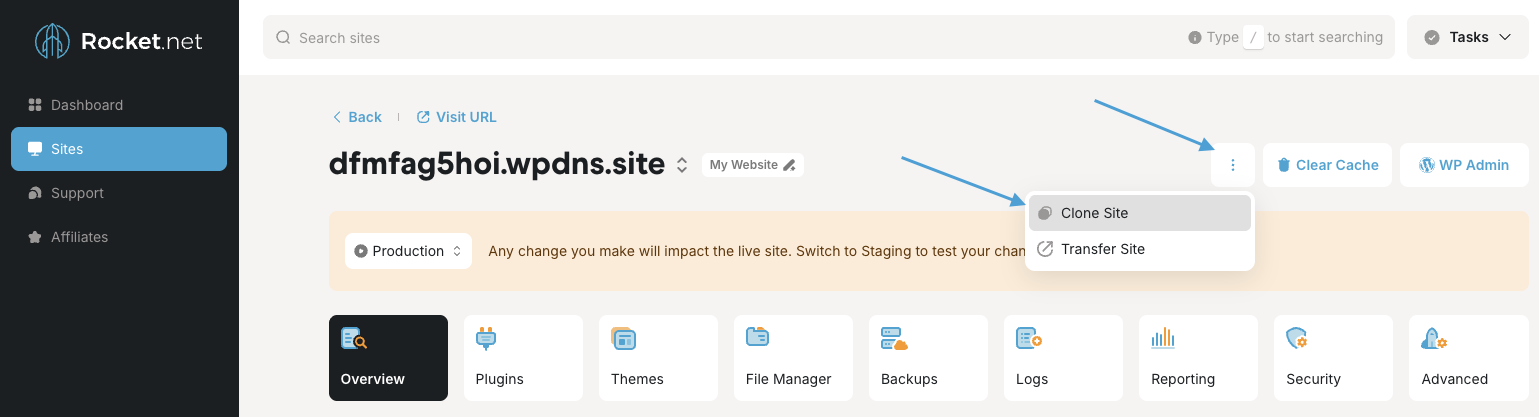
Click the three-dot menu next to Clear Cache and WP Admin, then select Clone Site.
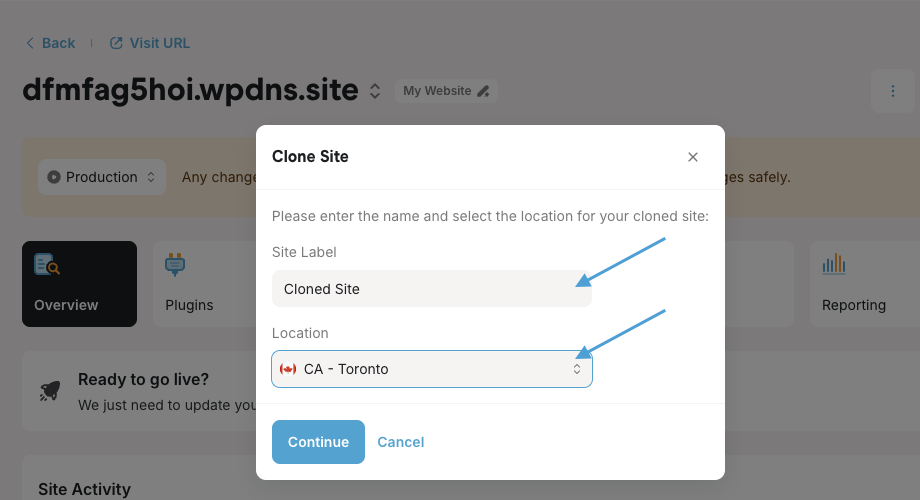
Give the new site a label so you can identify it, select any location in our worldwide network, and click Continue to create the site.
From there:
Once the site is cloned, you’re free to make all the changes you want without affecting the existing site. Should those changes become your new standard, you may even turn the cloned site into a Site Template.